English
 Arabic
 French
 Spanish
 Portuguese
 Deutsch
 Turkish
 Dutch
Dutch
 Italiano
 Russian
 Romaian
 Portuguese (Brazil)
 Greek
Greek
Boat Wiring Harness Market: Strategic Industry Analysis, Growth Drivers, and Future Opportunities
Other |
2026-08-26 15:01:48
 Social Networth OS
 Creator Commerce
 Launch Startup
 Global News
 Creator Award
 Talkfever App
See All
Talkfever App
See All

Upgrade to Pro
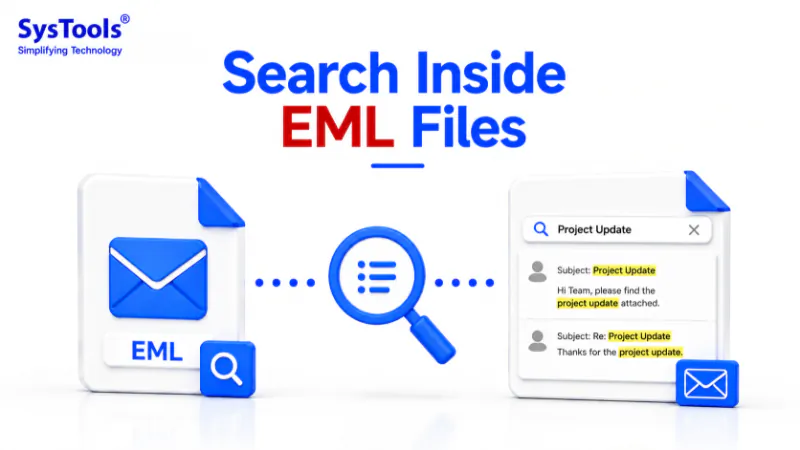
EML files are commonly used to store individual email messages, including the sender, recipient, subject, date, attachments, and complete email body. When hundreds or thousands of EML files are stored on a computer, backup drive, or archive folder, finding a specific message can become difficult. Searching only by filename or subject may not be enough when the required information is in the email body.
Knowing how to search email body inside EML files can make it easier to locate specific messages, conversations, keywords, or information without opening every EML file individually.
This guide explains different ways to search the email body in EML files and how specialized EML search software can simplify the process.
EML is an email message file format used by several email applications and email clients. An EML file can contain the complete contents of an individual email.
Typically, an EML file may include:
Because the email body is stored inside the file, searching the body can help locate messages even when the keyword does not appear in the filename or subject.
Searching only the subject line can make it difficult to find older or archived messages. A specific keyword may exist only within the body of an email.
For example, suppose you have thousands of EML files and need to find an email containing the phrase “project contract”. The phrase may not appear in the filename or subject, but it could be included somewhere in the message body.
Searching inside EML files can help you:
If you have only a few EML files, you can open them individually and use the email application's search function.
Step 1: Locate the EML Files
Navigate to the folder containing your EML messages.
Step 2: Open an EML File
Double-click an EML file to open it using a compatible email application.
Step 3: Search the Message
Use the application's Find or Search option to look for a specific word or phrase.
Step 4: Repeat the Process
If you have multiple EML files, open each message and search its contents individually.
This method can work when dealing with a small number of files. However, manually opening hundreds or thousands of EML messages is inefficient.
Manual searching becomes increasingly difficult as the number of EML files grows.
Some common limitations include:
For large EML archives, a dedicated EML search tool can provide a more convenient solution.
When you need to search hundreds or thousands of EML files, specialized software can scan the email content and display matching messages.
SysTools EML Viewer Pro or search application can allow users to add folders containing EML files and search for specific keywords within the available email data.
A typical workflow is:
This approach can be considerably more convenient than opening individual files.
Keyword searching is useful when you know a particular word or phrase contained in the message.
For example, you may want to search for:
Searching the email body allows you to locate messages based on their actual content rather than relying solely on metadata.
You do not necessarily need to import every EML file into an email account to inspect archived messages.
A dedicated EML viewer or search utility can be useful when you have standalone EML files stored in a folder or backup location.
This is particularly helpful when:
Working directly with standalone EML files can also help preserve the original email collection during investigation or review.
Large EML archives can contain thousands of messages collected over several years. Searching such a collection manually can be extremely difficult.
Before searching, it is useful to organize EML files into folders based on:
A structured folder hierarchy can make large collections easier to manage and can complement keyword-based searching.
If a keyword search does not return the expected message, check whether:
Try searching for a shorter or alternative keyword when the exact phrase is unknown.
Follow these practices when working with large EML collections:
These steps can make email discovery more efficient while reducing the risk of accidentally modifying archived messages.
Knowing how to search email body inside EML files is useful when working with archived emails, backups, exported messages, and large collections of standalone EML files. While manually opening individual messages can work for a small collection, it becomes inefficient when thousands of emails need to be searched.
A dedicated EML Viewer Pro+ application can simplify the process by allowing users to work with multiple EML files and locate messages based on keywords, subjects, senders, and email content.
Whether you are searching for a customer conversation, invoice, project reference, or a specific phrase, searching the actual email body provides a more effective way to find information stored inside EML files.