English
 Arabic
 French
 Spanish
 Portuguese
 Deutsch
 Turkish
 Dutch
Dutch
 Italiano
 Russian
 Romaian
 Portuguese (Brazil)
 Greek
Greek
Spinal Trauma Devices Market Size, Share, Growth and Forecast to 2034
Other |
2025-08-23 08:28:43
 Social Networth OS
 Creator Commerce
 Launch Startup
 Global News
 Creator Award
 Talkfever App
عرض كل النتائج
Talkfever App
عرض كل النتائج

ترقية الحساب
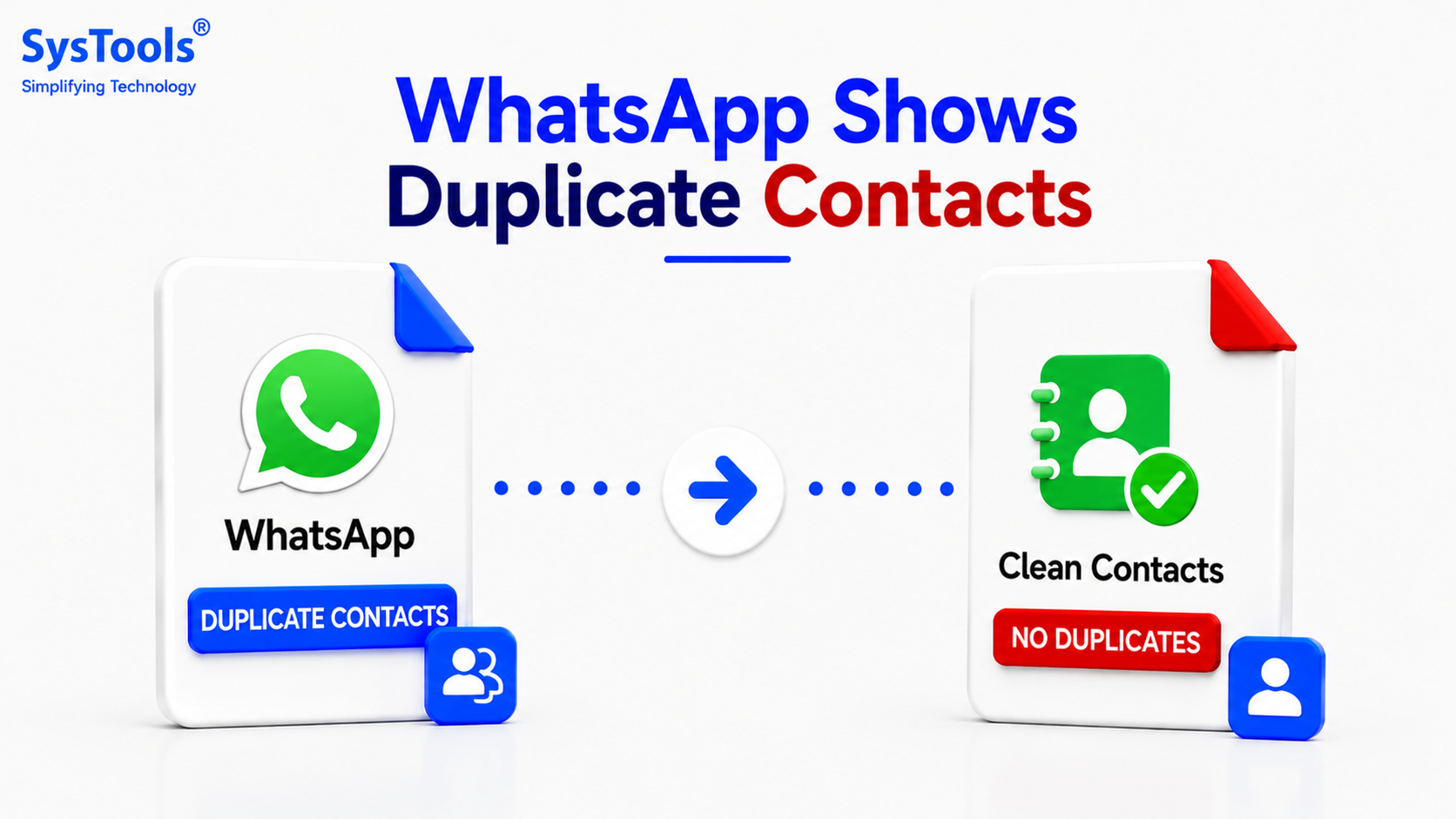
Seeing duplicate contacts in WhatsApp can be confusing, especially when the same person appears two or more times in your chat list or contact picker. In most cases, WhatsApp is not actually creating duplicate contacts. The issue usually occurs because duplicate entries exist in the phone's Contacts app, multiple accounts are syncing the same contacts, or WhatsApp is displaying contacts from different sources.
Fortunately, you can usually fix the problem by identifying where the duplicate contacts are coming from and cleaning up your contact list.
There are several reasons why duplicate contacts may appear in WhatsApp:
The same phone number is saved more than once.
Contacts are synchronized from multiple Google, iCloud, Microsoft, or other accounts.
Contacts were restored from an old phone backup.
SIM and phone contacts contain the same entries.
Contact synchronization has created multiple copies.
WhatsApp has not refreshed its contact list correctly.
Contacts contain the same person with slightly different names or formats.
Old and new contact entries use different country-code formats.
For example, one contact might be saved as +91 9876543210, while another entry contains 09876543210. Although these may represent the same person, your phone can treat them as separate contact records.
Start by opening your phone's Contacts app and searching for one of the duplicate names.
If you find multiple entries for the same person, compare their phone numbers and other information. Delete unnecessary copies or merge them into a single contact.
On many Android phones, you can use the built-in Merge & Fix or Merge duplicate contacts option.
On iPhone, check whether the duplicate contacts are coming from multiple accounts or contact groups.
If your phone provides a duplicate-contact detection feature, use it to combine duplicate entries.
On Android:
Open the Contacts app.
Look for Fix & manage, Organize, or a similar option.
Select Merge & fix or Merge duplicates.
Review the suggested duplicates.
Merge the contacts you want to combine.
The exact menu names can vary depending on the phone manufacturer and Android version.
Duplicate contacts can appear when contacts from several accounts are synchronized to the same device.
For example, you may have the same contact stored in:
Google Contacts
Phone storage
SIM card
Microsoft account
iCloud
Other contact-management services
Check your phone's account and synchronization settings. If the same contacts are being synchronized from multiple sources, clean up the duplicates or disable unnecessary contact synchronization.
Some phones can display contacts stored on both the SIM card and the phone.
If you previously imported SIM contacts into your phone, you may now have two copies of the same person.
Open the Contacts app and check whether SIM contacts are being displayed. If you have already moved them to your main contact account, remove duplicate contacts from WhatsApp entries.
After cleaning your phone's contact list, WhatsApp may still temporarily display the old information.
On Android, open WhatsApp and go to the contact selection screen. Depending on your WhatsApp version, you may find an option to refresh contacts from the menu.
You can also close WhatsApp completely and reopen it after your phone's contacts have been updated.
On iPhone, make sure WhatsApp has permission to access your contacts:
Settings → Privacy & Security → Contacts → WhatsApp
Ensure contact access is enabled.
A simple restart can sometimes resolve contact synchronization issues.
After merging or deleting duplicate contacts, restart your smartphone and open WhatsApp again. This gives the operating system and apps an opportunity to reload the updated contact database.
An outdated WhatsApp installation can sometimes cause synchronization or contact-display issues.
Open the Google Play Store or Apple App Store and check whether a WhatsApp update is available. Install the latest version and then check your contacts again.
If duplicate contacts continue appearing after cleaning your phone's Contacts app, the underlying contact database may contain duplicate records that are not obvious from the normal contact list.
This can happen when contacts have been collected from multiple sources over several years. Manually checking hundreds or thousands of contacts can take considerable time.
In such situations, a dedicated duplicate contact remover can help identify and clean duplicate contact records from supported contact files and databases.
For example, SysTools VCF Contacts Remover can be useful when duplicate contacts are stored in supported contact databases or files. It is designed to identify duplicate contact entries and help users remove unnecessary copies while retaining the required contact information.
Once you have removed the duplicates, take a few steps to prevent the problem from returning:
Keep contacts synchronized with one primary account whenever possible.
Avoid importing the same contact list multiple times.
Check contacts before restoring an old backup.
Avoid saving the same number under different contact entries.
Review SIM contacts before importing them.
Periodically check your Google, iCloud, or other synced contact accounts.
Keep WhatsApp and your phone's operating system updated.
If WhatsApp shows duplicate contacts, the problem is usually related to duplicate or incorrectly synchronized entries in your phone's contact database rather than WhatsApp itself. Start by checking and merging duplicates in your Contacts app, then review synchronized accounts, SIM contacts, and WhatsApp's contact permissions.
If you have a large contact collection or duplicates are spread across different contact files and databases, using a dedicated duplicate contact remover can make the cleanup process much easier and help maintain a cleaner contact list.