English
 Arabic
 French
 Spanish
 Portuguese
 Deutsch
 Turkish
 Dutch
Dutch
 Italiano
 Russian
 Romaian
 Portuguese (Brazil)
 Greek
Greek
Diablo 4 team gave an extensive compare
Games |
2024-02-19 01:10:40
 Social Networth OS
 Creator Commerce
 Launch Startup
 Global News
 Creator Award
 Talkfever App
Ver todos
Talkfever App
Ver todos

Atualizar para Plus
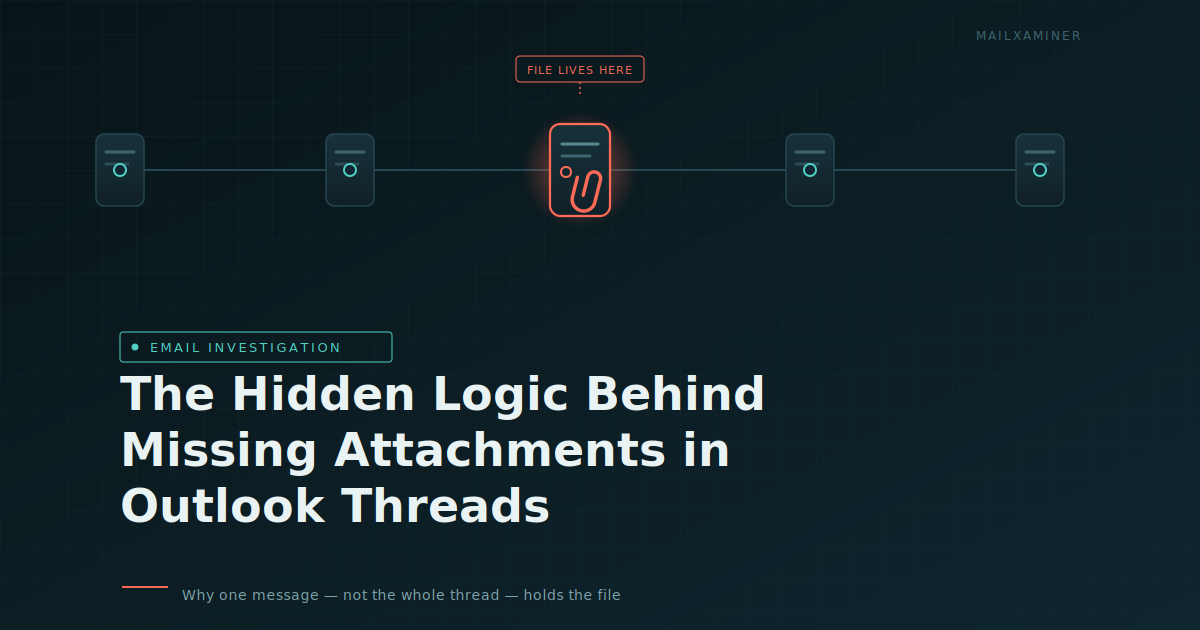
Few things are more frustrating in a busy inbox than knowing a file was shared "somewhere in this conversation" and being unable to find it. Outlook's threaded view is meant to make email easier to follow, but it also hides a detail that trips up almost everyone: attachments don't belong to the conversation — they belong to one specific message inside it. Once that distinction clicks, tracking down a missing file gets a lot faster, whether you're a regular user or a forensic examiner combing through a mailbox for evidence.
Picture a thread with five exchanges. The very first email carries a signed contract. Every message after that is just conversation — confirmations, questions, a quick thank-you. If you scroll straight to the bottom expecting to see the contract, you won't find it there, because it was never resent. It's still sitting in message one.
This is the single biggest reason people believe an attachment has vanished. It hasn't disappeared; it simply never traveled forward through the thread the way the conversation itself does. Recognizing this pattern saves a lot of wasted scrolling.
Rather than treating a conversation as one long scroll, treat it as a stack of individual messages:
Open the thread and expand any collapsed items — Outlook often folds older replies out of view by default.
Move through each message individually rather than jumping to the newest one.
Watch for the paperclip marker, but don't rely on it appearing next to every message that has a file. Outlook frequently shows the icon only on the most recent item, even when an older reply is the one actually carrying the attachment.
Once you land on the correct message, open it on its own and download the file from there.
This slower, message-by-message approach is really the only reliable way to handle short threads, and it also builds the habit that makes longer threads easier to search.
Manually expanding twenty or thirty replies isn't realistic, so Outlook's search tools exist for exactly this scenario. In the newer Outlook interface and in the web version, typing a relevant word — a project name, a client, a subject fragment — into the search bar brings back a filtered list. Selecting Files, or applying the Has Attachments toggle, immediately trims that list down to messages that actually contain something to download.
Classic Outlook offers a text-based shortcut for the same result. Typing:
hasattachments:yes
into the search field and hitting enter surfaces every attachment-bearing message within the current folder or mailbox scope. It's a small trick, but it turns a guessing game into a direct lookup.
Search results improve dramatically the moment you add a second detail. Combining a sender's name with the attachment filter, or pairing a subject keyword with Has Attachments, narrows a cluttered inbox down to just a handful of candidates. The principle is the same one investigators use when building a query: the more specific the clue, the smaller — and more accurate — the result set.
For anyone working primarily in the browser version of Outlook, the process looks slightly different but follows the same logic:
Open Outlook on the web and go to View.
Choose Conversations, then Group into Conversations.
Scroll through the grouped messages looking for the angled paperclip icon.
Click into the flagged message and either preview or download the attachment directly.
It's a serviceable method for day-to-day use, but like the desktop client, it depends on manually scanning messages — something that becomes unmanageable once a mailbox holds years of correspondence.
Everything above works fine for a normal working inbox. It breaks down fast in a forensic context. Investigators dealing with an exported PST or OST file, a mailbox with corrupted or partially recoverable data, or correspondence spread across several custodians can't rely on scrolling and clicking. At that scale, a missing attachment isn't just inconvenient — it can mean missing evidence.
For readers who want the complete step-by-step walkthrough of these native Outlook techniques, including screen-by-screen detail, this guide on how to find attachments in an Outlook email chain covers the process in full.
A single email, viewed in isolation, is a fragile piece of evidence — metadata can be altered, and timestamps disputed. A full thread is much harder to fake convincingly, because it requires a consistent, multi-message narrative between the same participants over time. That consistency is exactly what makes threaded email so valuable in an investigation:
It creates a clearer timeline, since each reply is anchored to the one before it.
It helps establish who initiated contact and who responded, which matters for chain-of-custody questions.
Patterns across multiple threads can expose a wider network of contacts that a single email would never reveal.
Because a genuine attachment tends to show up consistently within its original message, any tampering — a changed file size, an inconsistent metadata stamp — tends to stick out rather than blend in.
Not every conversation follows a simple back-and-forth pattern, and each variation demands a different investigative approach:
Two-person threads are the simplest, though tracing the true origin becomes hard if early messages were deleted.
Group threads with several participants make it harder to determine who actually received a given file.
Spoke-pattern threads, often the result of a compromised account auto-forwarding messages outward, spread quickly and unpredictably.
Branching threads, where a single conversation forks into separate sub-discussions, complicate attaching a specific file to a specific action, since each branch may carry its own version of events.
Once a case involves multiple custodians, damaged data, or thousands of messages, manual review — even with Outlook's built-in search — reaches its ceiling. This is the point where a dedicated email forensics software solution becomes the practical choice rather than a luxury.
Purpose-built platforms can reconstruct conversations even where portions have been deleted, recover attachments that would otherwise be unrecoverable, and let investigators examine messages through multiple lenses — including message body, header, MIME, HTML, RTF, and hex views — so nothing slips through during review. Many also include decryption support, link-analysis mapping between correspondents, OCR for text buried inside image attachments, and export formats suited for formal reporting.
Most "missing" attachments in Outlook aren't missing at all — they're simply attached to a message further back in the thread than expected. Understanding that one fact, combined with Outlook's built-in search filters, resolves the vast majority of everyday cases. But when the mailbox in question is evidence rather than correspondence, and the stakes involve proving what happened and when, manual methods aren't enough. That's the point where specialized forensic tools take over, turning a sprawling, unreliable thread into a defensible, well-documented record.