English
 Arabic
 French
 Spanish
 Portuguese
 Deutsch
 Turkish
 Dutch
Dutch
 Italiano
 Russian
 Romaian
 Portuguese (Brazil)
 Greek
Greek
Global Pharmacogenomics (PGx) Market
Other |
2026-08-01 11:47:03
 Social Networth OS
 Creator Commerce
 Launch Startup
 Global News
 Creator Award
 Talkfever App
عرض كل النتائج
Talkfever App
عرض كل النتائج

ترقية الحساب
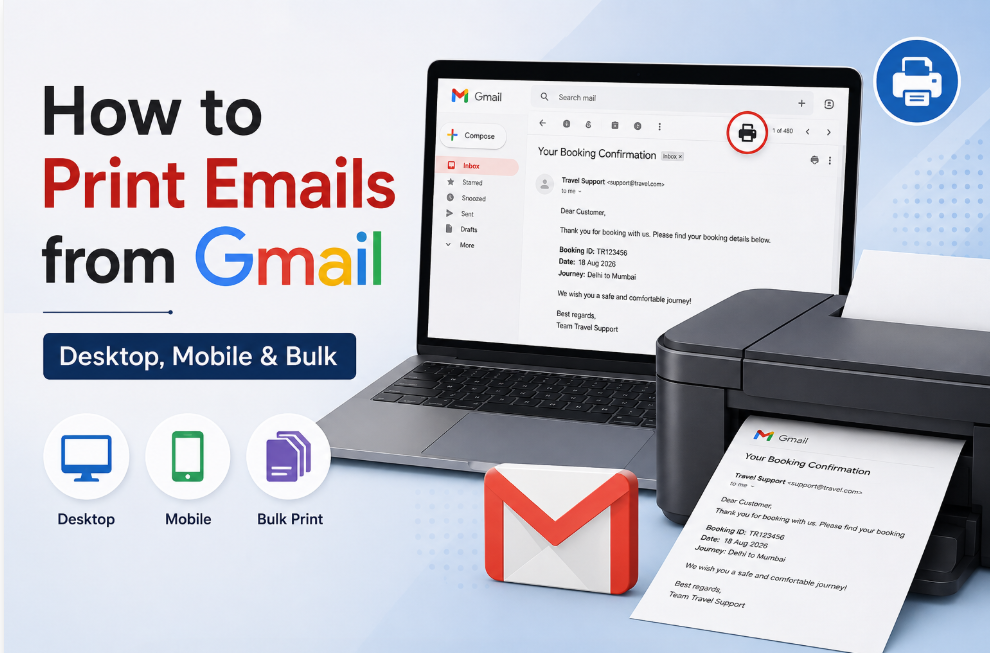
Email has become an important source of information for both personal and professional work. Receipts, invoices, travel confirmations, customer conversations, payment records, approvals, and other important details are often stored in Gmail. While most of this information can remain digital, there are situations where having a physical copy is useful.
The good news is that Gmail includes a built-in printing option, so you do not need additional software when you only want to print one or a few messages. The process is slightly different depending on whether you are using Gmail on a desktop, Android phone, iPhone, or iPad.
However, printing becomes more complicated when you need to handle dozens or hundreds of emails. In that situation, manually opening each message and sending it to the printer can consume significant time. This guide explains the different ways to print Gmail emails and what to do when you need to handle email data in bulk.
The easiest way to print an email is through Gmail's desktop interface. This works on both Windows and Mac computers.
Start by opening Gmail in your browser and signing in to your account. Then open the specific email you want to print. The printing option appears inside the opened message rather than directly from the inbox list.
Look toward the upper-right area of the message. You should see a printer icon. Click it to open the print preview.
Alternatively, you can click the three-dot menu associated with the email and select the Print option.
Once the print preview appears, select the printer you want to use and adjust settings such as paper size, orientation, margins, and scale. Then click Print.
Windows users can also use the Ctrl + P keyboard shortcut, while Mac users can use Cmd + P. Depending on the browser and page state, this may open the browser's printing interface rather than Gmail's dedicated print view, so the printer icon inside Gmail is generally the more predictable option.
You can also print Gmail messages directly from a mobile device when your phone or tablet and printer support the required printing service.
On Android, open the Gmail application and select the message you want to print. Tap the three-dot menu and choose Print. Select the available printer and confirm the print operation.
On an iPhone or iPad, open the Gmail application and select the email. Tap the three-dot menu and select Print. You can then choose a compatible printer and complete the process.
For wireless printing, the phone and printer generally need to be connected to the same network or use a supported mobile printing service.
One important point is that printing a message from a long conversation does not necessarily mean every message in the conversation will be printed. If you need the complete conversation, make sure you select the appropriate print option for the entire thread rather than an individual message.
A normal Gmail printout can contain information such as the sender, subject, date, and Gmail interface elements. These details can be useful when preserving an email for reference, but they may not always be desirable for a clean presentation.
For example, someone preparing an email record for a meeting may want the actual message content without additional interface elements.
Gmail does not provide a simple standard setting that removes every header element from the printout. One possible workaround is to open the browser's print preview and use the browser's developer tools to temporarily remove unwanted page elements.
This approach requires some technical knowledge and should be used carefully. Removing an element from the displayed webpage does not modify or delete the original Gmail message. It only changes what is displayed on the current page before printing.
For regular business workflows, however, it is generally better to retain important identifying information such as the sender, recipient, subject, and timestamp. These details can help establish the context of a printed email later.
Simply selecting Print does not always produce the best-looking document. Gmail messages can contain tables, images, signatures, and long blocks of text, so print settings may need to be adjusted.
Portrait orientation is usually suitable for ordinary text-based messages. If the email contains a wide table or large image, landscape orientation may provide a better result.
Paper size should match the paper loaded in the printer. A4 is commonly used in many regions, while Letter is common in the United States and Canada.
Margins also affect the final appearance. Smaller margins can help fit more content on a page, while wider margins may make documents easier to annotate or organize in a physical file.
Scale is another useful setting. If text is being cut off, reducing the scale can help. If the content appears unnecessarily small, increasing the scale may improve readability.
It is always worth checking the preview before sending a lengthy email to the printer. This can prevent unnecessary paper and ink consumption.
Printing on paper is not always necessary. Sometimes the actual requirement is simply to create a permanent copy that can be shared, archived, or printed later.
In that case, saving the Gmail message as a PDF can be a more convenient option.
Open the email and select the Print option. In the print preview, look for the Destination or Printer selection. Instead of choosing a physical printer, select Save as PDF.
Choose a suitable location, provide a filename, and save the document.
This approach creates a digital copy that can be stored on a computer, external drive, or another secure location. It can also be useful when someone needs to send the email to another person without forwarding the original Gmail message.
PDF copies are particularly convenient for invoices, receipts, confirmations, business correspondence, and records that may need to be referenced later.
Printing one email is simple. Printing ten is manageable. Printing hundreds is a completely different task.
Imagine needing to print a year's worth of invoices or several hundred customer emails. The standard Gmail workflow requires you to repeatedly open messages, choose the print option, wait for the preview, select settings, and send each document to the printer.
This creates several problems.
First, the process takes considerable time. Second, manually repeating the same operation increases the possibility of missing an email. Third, attachments require additional handling because printing the email does not automatically print the contents of its attachments.
For larger collections, a better approach is to first export or save the required emails into a suitable format and then process the resulting files together.
When the objective is to handle a large number of Gmail messages, a dedicated backup or export application can simplify the workflow.
For example, the SysTools Gmail Email Backup Tool can be used when users need to process Gmail data in bulk rather than manually printing individual messages.
The general workflow involves selecting Gmail as the source, choosing PDF as the destination, selecting the required email workload, and specifying options such as the date range. The application supports secure OAuth 2.0 authentication for accessing the Gmail account.
After authentication, users can select where the exported data should be stored and start the process.
Once the emails have been converted into PDF files, the files can be selected from the destination folder and printed together from the computer. This changes the process from repeatedly printing individual Gmail messages to first creating an organized collection of documents and then processing them in a batch.
This type of workflow can be useful for businesses dealing with invoices, customer correspondence, project records, receipts, or other email collections.
One common misunderstanding is that printing an email automatically prints everything attached to it.
That is not normally the case.
When you print a Gmail message, the printed page can show information about an attachment, such as its filename and attachment indicator, but the actual contents of the attachment are not automatically printed as part of the email.
If the attachment is a PDF, Word document, image, spreadsheet, or another file, you generally need to open the attachment separately and print it.
This becomes particularly inconvenient when working with a large number of emails containing attachments. A bulk-processing workflow can be more practical when both email records and their associated files need to be handled systematically.
Sometimes the problem is not Gmail itself but the connection between the computer, browser, and printer.
If a print job becomes stuck, open your operating system's printer settings and check the print queue. Cancel the stalled job and try again.
If the printer does not respond, verify that it is powered on and connected correctly. For wireless printers, confirm that the computer or mobile device and printer are connected to the expected network.
Restarting the printer and computer can also resolve temporary communication problems.
If only part of an email appears on the printed page, check the print preview and adjust the scale, margins, or orientation. Wide tables and large images are common reasons for content being cut off.
For attachments, remember that the email printout and the attachment are separate documents. Open and print the attachment independently when required.
The right approach depends on how many emails you need to process.
For one or a few messages, Gmail's built-in Print option is usually the simplest solution. It requires no additional software and works across desktop and mobile devices.
For a digital copy rather than physical paper, Save as PDF is often more convenient. It reduces paper usage and creates a document that can be stored or shared electronically.
For large collections, manually printing every message can become inefficient. Exporting emails to PDF first and then printing the resulting files provides a more organized workflow.
The important thing is to identify the actual requirement before choosing a method. If the goal is simply to put one email on paper, Gmail already provides everything needed. If the goal involves hundreds of messages, attachments, date ranges, or long-term preservation, a dedicated email processing workflow can save substantial time. We hope from the information above you are clear on how to print emails in Gmail.
Gmail makes individual email printing relatively straightforward, whether you are using a Windows PC, Mac, Android device, iPhone, or iPad. You can also save messages as PDFs when you need a digital record instead of a physical document.
The challenge begins when the number of emails increases. Repeating the same printing process hundreds of times is slow and can lead to missed messages or inconsistent results.
For small tasks, Gmail's native printing feature remains the most convenient choice. For larger email collections, exporting messages to PDF and processing them in bulk provides a more practical approach.
Understanding these options allows you to choose the right workflow based on the number of messages, whether attachments are involved, and whether you need physical documents or digital records.