English
 Arabic
 French
 Spanish
 Portuguese
 Deutsch
 Turkish
 Dutch
Dutch
 Italiano
 Russian
 Romaian
 Portuguese (Brazil)
 Greek
Greek
What Skills Make a Java Resume Strong Even Without an Internship?
Other |
2026-07-20 12:00:40
 Social Networth OS
 Creator Commerce
 Launch Startup
 Global News
 Creator Award
 Talkfever App
Ver todos
Talkfever App
Ver todos

Atualizar para Plus
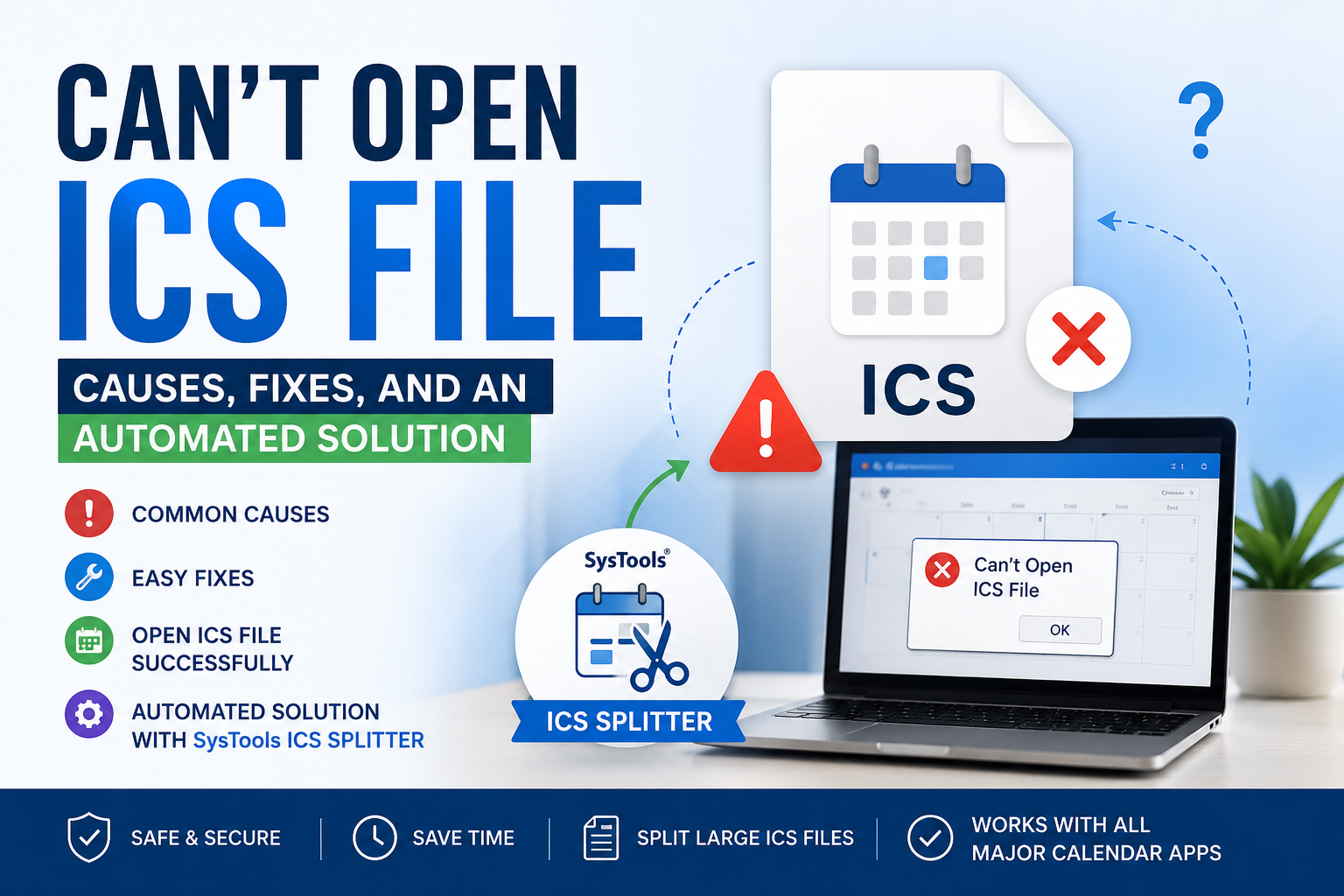
If you are facing the can’t open ICS File issue, accessing important calendar events, appointments, and meeting details can become difficult. This problem may occur due to an incorrect file association, corrupted calendar data, an unsupported application, or an oversized ICS file. In this guide, we will discuss the common causes and practical methods to fix unable to open .ics file issue, along with an automated solution for handling large ICS files.
Several factors can cause the can’t Open ICS File problem:
The computer does not have an application associated with the ICS format.
The ICS file contains corrupted or incomplete calendar data.
The file is unusually large and difficult for the calendar application to process.
The file extension has been changed incorrectly.
The calendar application does not properly support the file content.
The ICS file was interrupted or damaged during downloading or transfer.
Multiple calendar applications may conflict when opening the file.
Understanding the actual cause helps you select the appropriate solution instead of repeatedly trying to open the same file.
First, verify that the file actually ends with .ics. Sometimes, a file may have been renamed or saved with an incorrect extension.
Right-click the file and select Properties. Check the filename and file type. If the extension is incorrect, create a copy of the file and rename the extension to .ics. Then try opening the copied file using a compatible calendar application.
When the file is too large to process conveniently, an automated utility such as the SysTools ICS Splitter tool can divide the calendar data into smaller ICS files.
The tool can be useful when a large calendar file is causing the can’t Open ICS File problem. Instead of repeatedly attempting to load the complete file, you can create smaller segments and open them individually.
Download the tool and then choose Split ICS.
Add the large ICS file that you are unable to open.
Preview the available calendar data before processing it.
Select an appropriate splitting option based on your requirements.
Specify the destination location for the resulting files.
Start the splitting process and wait for the operation to finish.
Open the smaller ICS files individually in a compatible calendar application.
This approach is especially helpful when the original file is very large and the calendar application struggles to load all events simultaneously.
If double-clicking does not work, try importing the file through your calendar application's built-in import option.
For example, in Outlook, look for the option to open or import an iCalendar file. In other calendar applications, the relevant option may appear under File, Import, or Calendar Settings.
Importing the file through the application's supported workflow may work even when direct opening fails.
The can’t open ICS file problem can result from incorrect file associations, incomplete downloads, unsupported applications, damaged content, or oversized calendar files. In this article, we have covered the main methods to troubleshoot the issue, including checking the extension, opening the file with a compatible application, downloading it again, importing it through the calendar program, inspecting its structure, and splitting large files. If file size is preventing normal access, the software can help divide the ICS data into smaller files for easier processing.