English
 Arabic
 French
 Spanish
 Portuguese
 Deutsch
 Turkish
 Dutch
Dutch
 Italiano
 Russian
 Romaian
 Portuguese (Brazil)
 Greek
Greek
Global 2,5-Dimethyl-2,5-hexanediol to Hit USD 112.9 Million by 2032 at 4.7% CAGR
Music |
2026-06-02 08:48:02
 Social Networth OS
 Creator Commerce
 Launch Startup
 Global News
 Creator Award
 Talkfever App
Ver todos
Talkfever App
Ver todos

Atualizar para Plus
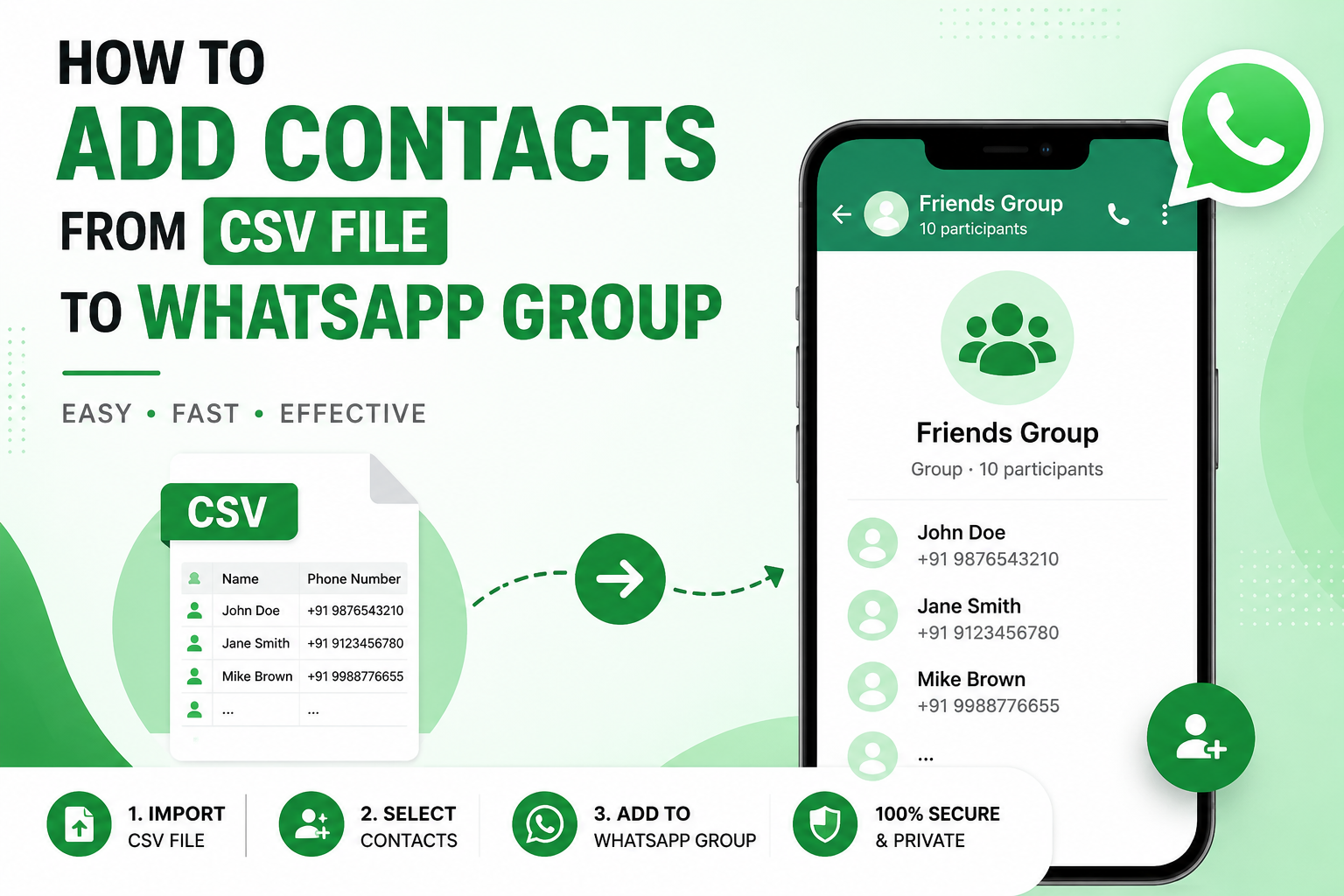
A CSV file makes it easy to keep a large list of names and phone numbers in one place. But WhatsApp does not let you upload a CSV file directly and add all those numbers to a group. The contacts first need to be saved to your phone's address book so that WhatsApp can recognize them. If you are looking for how to add contacts from CSV file to WhatsApp group, you will need to import the contacts first and then add the required people to the group through WhatsApp.
If you want to import CSV contacts to WhatsApp, there are a couple of ways to do it. For a small number of contacts, you can use a manual method. If you have a large list, converting the CSV file to a vCard format can save time and reduce the effort of adding contacts individually. Below, we will walk through both methods, along with their pros, cons, and some useful tips to make the process easier.
No. WhatsApp does not currently offer a feature where you can select a CSV, Excel, or spreadsheet file and upload its phone numbers directly into a group.
Once the contacts are available in your phone's address book and WhatsApp has permission to access them, they can appear when you select Add participants or a similar option from the group information screen.
This distinction is important because simply having a phone number in a CSV file does not make it a WhatsApp contact.
Before starting, clean and verify your CSV file. A typical file may contain columns such as:
Pay particular attention to the following:
Correct number formatting is especially important because an incorrectly formatted number may not appear as an eligible WhatsApp contact.
If you only have a small number of contacts in your CSV file, the manual approach is simple and does not require any additional software. You first import the contacts into your phone's address book and then select them from WhatsApp while adding members to the group.
Advantages
Limitations
If your CSV file contains a large number of contacts, manually saving each number to your phone can quickly become a tedious task. A better option is to convert the complete contact list into a format that can be imported into your phone's address book in bulk. Once the contacts are available on your phone, you can access them through WhatsApp and add the required members to your group.
For this approach, you can use SysTools Excel to vCard Converter Tool, which supports CSV, XLS, and XLSX contact files and converts them into VCF format. It can be useful when you have a business contact list, customer database, employee records, or event attendees stored in a spreadsheet and want to prepare them for bulk contact import.
Adding contacts from a CSV file to a WhatsApp group requires an extra step because WhatsApp does not directly support CSV imports. For a small list, the manual method works well, while converting the file into a compatible contact format is more convenient for larger lists. Choose the approach based on the number of contacts, the time available, and how often you need to manage bulk contact lists.