English
 Arabic
 French
 Spanish
 Portuguese
 Deutsch
 Turkish
 Dutch
Dutch
 Italiano
 Russian
 Romaian
 Portuguese (Brazil)
 Greek
Greek
Vivienne Westwood 春夏婚紗 打造反叛嫁衣
Uncategorized |
2025-12-16 07:41:07
 Social Networth OS
 Creator Commerce
 Launch Startup
 Global News
 Creator Award
 Talkfever App
See All
Talkfever App
See All

Upgrade to Pro
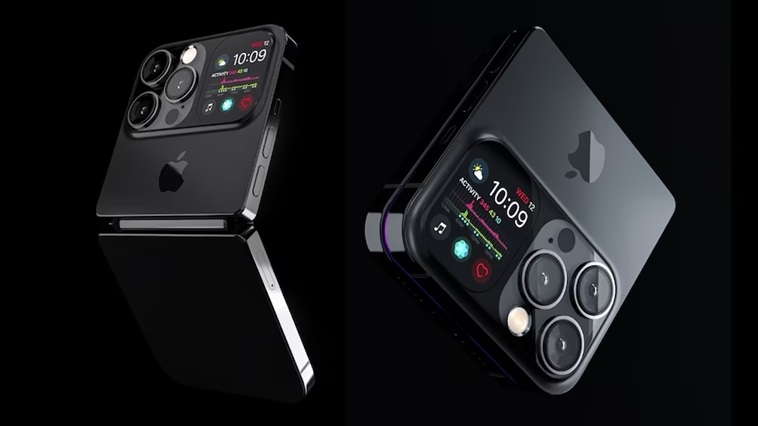
In an age where smartphones hold our private conversations, financial details, and even work secrets, digital security is no longer optional—it is essential. For users who face elevated risks from cyberattacks, spyware, or targeted surveillance, Lockdown Mode on the iPhone acts like a royal guard for your data. Introduced by Apple, Lockdown Mode is a specialized security feature designed to reduce the phone’s attack surface by limiting certain functions that hackers often exploit.
While most users will never need such extreme protection, Lockdown Mode exists for journalists, activists, political figures, business leaders, and anyone who believes they may be targeted by sophisticated threats. This article explains what Lockdown Mode is, what protections it enables, how to turn it on, how to confirm it is active, and answers common questions about its use.
Lockdown Mode is an optional security setting built into modern versions of iOS. It is not meant to replace everyday protections like Face ID, passcodes, or app permissions. Instead, it adds an extra layer of defense by restricting certain features that could be abused by advanced spyware or zero-click exploits—attacks that do not require you to tap a link or download a file.
Think of Lockdown Mode as placing your iPhone in a high-security posture. The device still works, but some conveniences are reduced to ensure safety. Messages, browsing, and connections become more tightly controlled, making it much harder for malicious code to enter or run.
When Lockdown Mode is turned on, several core areas of the iPhone are modified for maximum safety:
Most types of file attachments are blocked in the Messages app, except for simple images. This prevents malicious documents or hidden scripts from reaching your phone through texts or iMessages.
Certain advanced web technologies are disabled. Websites may load more simply, without complex scripts or custom fonts that could be exploited. This dramatically reduces the chance of drive-by attacks from compromised or malicious web pages.
FaceTime calls, calendar invites, and other requests from unknown senders are automatically blocked unless you have previously interacted with them. This prevents attackers from using surprise requests as an entry point.
When your iPhone is locked, wired data connections (such as through USB) are disabled. This stops attackers from using physical access tools to extract or inject data.
Installing configuration profiles or enrolling in mobile device management systems is blocked. This ensures that no hidden system-level changes can be made without your knowledge.
By limiting high-risk features, Lockdown Mode narrows the number of potential vulnerabilities attackers can exploit, especially those that have not yet been publicly discovered.
These protections collectively make the iPhone much harder to compromise, even for well-funded attackers.
Turning on Lockdown Mode is straightforward:
Open Settings
Tap Privacy & Security
Scroll down and select Lockdown Mode
Tap Turn On Lockdown Mode
Review the information and confirm
Restart your iPhone when prompted
Once enabled, the protections take effect immediately after reboot.
You can verify Lockdown Mode in several ways:
Go to Settings → Privacy & Security → Lockdown Mode
If it shows as On, the feature is active
You may also see alerts in certain apps explaining that a feature is restricted due to Lockdown Mode
Safari and Messages behavior will change slightly, indicating the security posture is in effect
If you want to disable it later, simply return to the same menu and turn it off, followed by a restart.
Lockdown Mode is not necessary for most everyday users. It is designed for individuals who may be personally targeted, such as:
Journalists covering sensitive topics
Human rights activists
Government officials
Executives handling confidential business data
Individuals who suspect spyware or advanced hacking attempts
For average users, standard security features like automatic updates, strong passwords, and two-factor authentication provide sufficient protection.
While powerful, Lockdown Mode comes with certain compromises:
Some websites may not display correctly
File sharing through Messages is limited
Certain apps may lose functionality
Unknown contacts cannot easily reach you
These are deliberate design choices to reduce risk. Lockdown Mode prioritizes safety over convenience.
Lockdown Mode lives up to its regal nickname: it is a shield for those who need elite-level protection. By limiting risky features and blocking common attack paths, it provides peace of mind in high-threat environments. Although not meant for everyday use, it represents a major step forward in consumer cybersecurity, proving that smartphones can offer defenses once reserved for specialized devices. For those who walk in dangerous digital territory, Lockdown Mode truly acts as the King’s Shield.
Q1: Will Lockdown Mode slow down my iPhone?
No. Performance remains normal, but some features are restricted for safety.
Q2: Can I still use social media apps in Lockdown Mode?
Yes. Most apps work normally, though certain functions may be limited if they rely on blocked technologies.
Q3: Is Lockdown Mode reversible?
Yes. You can turn it off anytime from Settings and restart your device.
Q4: Does Lockdown Mode replace antivirus software?
It is not an antivirus replacement. It focuses on reducing system vulnerabilities rather than scanning for malware.
Q5: Will I still receive updates while Lockdown Mode is enabled?
Yes. Software and security updates continue as usual and are strongly recommended.
Q6: Is Lockdown Mode only for iPhones?
It is available on iPhones running recent iOS versions and is also supported on other Apple devices like iPads and Macs with compatible systems.
Q7: Should everyone enable Lockdown Mode by default?
No. It is best suited for users facing serious threats. For most people, it would unnecessarily limit everyday features.