English
 Arabic
 French
 Spanish
 Portuguese
 Deutsch
 Turkish
 Dutch
Dutch
 Italiano
 Russian
 Romaian
 Portuguese (Brazil)
 Greek
Greek
Selective Coating Robots Market Expands at 13.7% CAGR to USD 590 Million
Other |
2026-08-24 11:39:33
 Social Networth OS
 Creator Commerce
 Launch Startup
 Global News
 Creator Award
 Talkfever App
See All
Talkfever App
See All

Upgrade to Pro
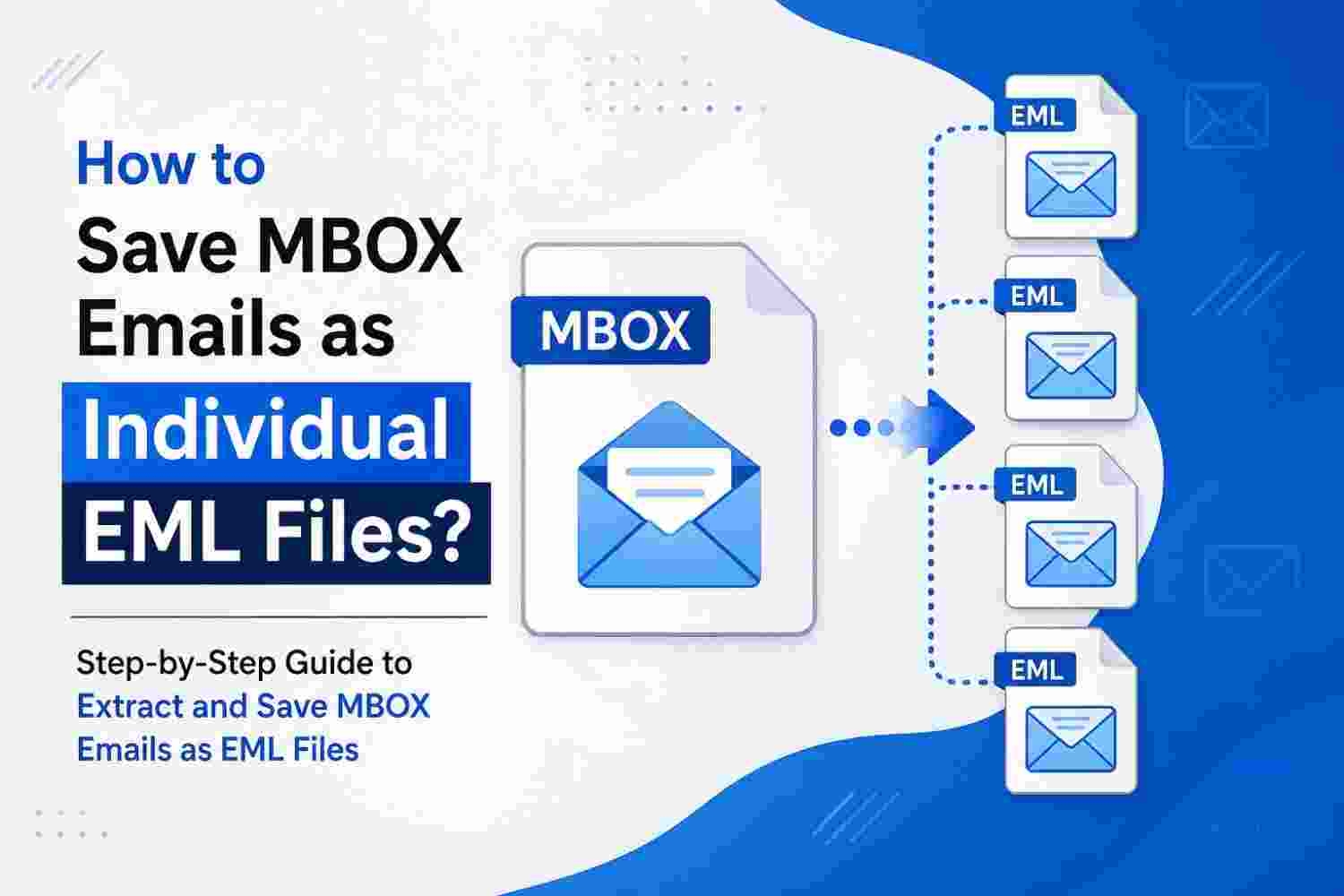
An MBOX file can hold a large collection of emails in one place.
That is useful for keeping an email archive together, but it can be inconvenient when you need only a few messages from that archive.
For example, you may need to send one old email to a colleague, keep a specific message as a separate record, or move selected emails to another application.
Opening and managing the complete MBOX file every time can make these simple tasks harder.
Saving the messages as individual EML files provides a more convenient way to handle them.
The main difference is how the emails are stored.
An MBOX file can contain many messages together, while an EML file normally represents one email message.
This makes individual EML files useful when you want to work with messages separately.
Some common reasons include:
Keeping important emails as separate files
Sharing selected emails with other users
Creating a separate archive of important messages
Moving individual messages between supported email applications
Organizing emails by project, sender, or date
Keeping a local copy of specific email conversations
You do not always need to convert an entire mailbox for these purposes.
Before saving emails as EML, first identify the MBOX file you need to work with.
If you have multiple MBOX files, check their names and locations carefully.
You can also check the size of each file to understand how much email data it contains.
For a large archive, it is helpful to decide in advance whether you need:
All emails from the MBOX file.
Emails from a particular folder.
Emails from a specific sender.
Emails from a particular date range.
Only a few important messages.
This decision can save time and prevent unnecessary output files.
If the MBOX file is already available in an email application that supports it, you can open the mailbox and work with the messages there.
Select an email that you want to keep separately and use the application's available save or export option.
If EML is supported as an output format, the selected message can be saved as an individual EML file.
This method can be suitable when you have only a small number of emails to save.
However, manually saving hundreds of messages can become a slow process.
A dedicated MBOX conversion application can be more convenient when the archive contains a large number of emails.
Instead of saving messages one by one, you can process the mailbox and choose EML as the required output format.
A typical process looks like this:
Step 1: Select the MBOX file.
Step 2: Load the mailbox into the application.
Step 3: Review the available email folders and messages.
Step 4: Choose EML as the output format.
Step 5: Select a location for saving the converted files.
Step 6: Start the conversion.
Step 7: Open a few EML files to verify the results.
The exact process may vary depending on the software you use.
Converting an email is not just about saving the visible message text.
An email can contain several types of information that may be important later.
After creating EML files, check whether the output contains the required:
Sender information
Recipient information
Subject
Date and time
Email body
Attachments
Email formatting
This is especially important if the emails are being saved for business records or future reference.
Attachments often make an email more important than the message itself.
A customer email may contain an invoice.
A project email may include a report.
A personal message may contain photos or other documents.
Therefore, check attachments after saving the EML files.
Open several converted emails and confirm that their attachments are still available and can be opened.
If the original MBOX contains many attachment-heavy messages, check emails from different parts of the archive rather than checking only one message.
After conversion, you may have hundreds or thousands of separate EML files.
Putting all of them into a single folder can make the archive difficult to manage.
A simple folder structure can help.
For example:
MBOX Archive
2024
Clients
Projects
General
2025
Clients
Projects
General
2026
Clients
Projects
General
You can use a structure based on your own requirements.
For business emails, organizing files by client or project may be more useful than organizing them only by year.
File names become important when you have a large collection of EML messages.
If every file has a difficult or unclear name, finding a particular email later can take time.
Where possible, use a naming pattern that makes the files easier to identify.
For example:
Date_Sender_Subject.eml
Avoid creating names that are too long or difficult to understand.
A consistent naming system can make the archive easier to search and maintain.
Large MBOX files should be handled carefully.
Before starting the conversion, make sure the computer has enough free storage for the output files.
The size of the resulting EML collection can also vary depending on the number of emails and attachments.
For a very large archive, consider processing the data in manageable groups if the software supports selective processing.
After each conversion, check the output before moving to the next set.
A successful conversion message does not always mean that every email has been checked.
After the process, open several EML files from different parts of the archive.
Check at least:
An older email
A recent email
An email with an attachment
An email with multiple recipients
A longer email conversation
Make sure the messages open correctly and contain the information you need.
This simple verification step can help you find problems before the original MBOX archive is removed.
Once emails are available as separate EML files, they can be easier to manage for different purposes.
For example, you can use them for:
Email archiving
Data backup
Legal or business record keeping
Sharing selected email messages
Email migration
Moving specific messages between compatible applications
Keeping important correspondence separately
The exact use depends on the email application and the purpose of the archive.
When a large MBOX archive needs to be converted into individual email files, using a dedicated solution can reduce the amount of manual work.
PCDOTS MBOX Converter is one option users can consider when they need to process MBOX mailbox data and save emails in another format such as EML.
It can be useful when manually handling a large number of messages is not practical.
Before starting a complete conversion, it is still a good idea to test the process with a smaller mailbox and verify the output.
Do not delete the original MBOX file immediately after conversion.
Keep it until you have checked the important EML files and confirmed that the required email data is available.
If you later find a missing message or attachment, the original MBOX file gives you a source copy to check.
Once the converted data has been verified and backed up, you can decide whether the original archive can be moved or removed.
Saving MBOX emails as individual EML files can make an email archive easier to access and manage.
It is particularly useful when you need separate copies of messages instead of one large mailbox file.
For a small number of emails, saving messages through an email client may be enough.
For a large MBOX archive, a dedicated conversion method can make the work more manageable.
Whatever method you choose, check the converted emails, verify important attachments, organize the EML files properly, and keep the original MBOX file until you are satisfied with the results.
Also Read: - How to Remove Password from Outlook PST file?